
For most home office video calls, a 1080p webcam with a noise-reducing mic and a privacy cover is the sweet spot. Choose a 90° or wider field of view if you show a whiteboard or have two people on camera, or about 65–70° to keep a busy room out of shot. 4K helps mainly if you crop or zoom.
Last updated: 26 October 2026 (Australia/Sydney). Written by Darrah Opens — AU home and lifestyle specialists.
You’re about to jump on a crucial Zoom call, but your laptop’s built-in camera makes you look like a grainy potato, and your mic picks up every keyboard clack and distant lawnmower. Sound familiar? A dedicated webcam for your home office setup is the simplest fix. Longer answer? Let's find the right one for you.
What is a home office webcam and why does it matter?
It's a dedicated camera that plugs into your computer, designed specifically for video conferencing. Unlike your laptop's often poor built-in camera, a good webcam provides a sharper image, better colour, and a microphone that focuses on your voice. In a world where work from home video calls are the norm, it's a small upgrade that makes a huge difference in how professional you appear.
Your presence, amplified
Think of it as your personal broadcast studio. A quality webcam ensures you're seen in your best light—literally and figuratively—making meetings more engaging and collaborative.
Breaking down the specs: What to look for
Spec sheets can be confusing. Here’s what those numbers actually mean for your daily video calls at home.
| Spec | On Paper | What It Means at Home |
|---|---|---|
| Resolution | 1080p (1920x1080) | The standard for clear, professional video. Perfect for Zoom and Teams calls without hogging your internet bandwidth. |
| Field of View | e.g., 80° or 90° | A wider angle (like 90°) is great if you need to show a whiteboard or have two people on camera. A standard view keeps the focus on you. |
| Microphone | Built-in, noise-cancelling | Means you can ditch the headset for casual calls. Look for terms like "intelligent noise reduction" to cut out background noise. |
| Privacy Cover | Magnetic or manual shutter | A physical cover you slide over the lens. It’s the simplest, most effective way to stop digital prying when the camera's not in use. |
Webcam features explained
Auto light correction
The camera adjusts exposure and white balance as the light changes, for example when clouds pass or a lamp is switched on. That keeps your face from looking too dark or washed out. It helps, but a light in front of you still matters more.
Privacy shutter
A physical cover that slides or clips over the lens. When it's closed, the camera can't see anything, whatever the software does. The 1080P USB Webcam with HiFi Speaker Microphone listed below has a magnetic lens cover.
Dual noise-reducing mics
With two microphones, the webcam can tell your voice (in front) from background sound (to the sides) and lower the noise. Of the webcams listed below, only the 1080P USB Webcam mentions noise reduction ("intelligent noise reduction", with pickup up to 8m). None of their listings says how many mics they have.
Tilt-down desk view
Some webcams tilt down, or come with software, to show your desk or a sketch you're working on. None of the three listings below mentions a desk-view mode. The Logitech C930e lists digital pan, tilt and 4× zoom, which reframe the shot in software rather than moving the lens.
4K at 30fps vs 1080p at 60fps
Resolution is how much detail each frame has. Frame rate is how smooth movement looks. 4K at 30fps gives you a sharper picture with room to crop or zoom. 1080p at 60fps makes hand gestures and quick movements look smoother. Most video calling apps send 1080p or lower anyway, so for calls the smoother 1080p stream is often the better choice.
Why a 4K sensor downscaled to 1080p looks cleaner
When a 4K sensor's image is shrunk to 1080p, each output pixel is made from several sensor pixels. That averages out grain (noise), especially in dim rooms, and gives the camera spare pixels for digital zoom and framing without losing sharpness. All three webcams listed in this guide are 1080p at 30fps. None of them is 4K or 60fps.
Field of view: wide vs narrow
- 90° or more: fits a whiteboard, two people side by side, or a product demo. The Logitech C930e lists a 90° field of view.
- About 78–80°: a middle ground for one person with a little room in shot. The Face Recognition Webcam lists 80°.
- About 65–70°: a tighter frame that keeps a messy room or a busy background out of shot.
If you stand or move around
If you pace, stand at a sit-stand desk or teach at a whiteboard, use a wide webcam (90° or more) so you stay in frame. A PTZ or AI-tracking webcam with auto-framing can also follow you. None of the three webcams listed here offers motorised PTZ, AI tracking, auto-framing or autofocus according to its listing. The C930e's 90° view and digital zoom are the closest fit.
Where a dedicated webcam shines (and where it doesn't)
A USB webcam for your laptop is a game-changer for most, but it's not a magic bullet for every situation.
The bright spots
It massively upgrades your video and audio quality over built-in options. Features like a privacy cover offer peace of mind, and plug-and-play setup means you're ready in seconds. It’s the core of a polished home office setup.
The honest limitations
Even the best webcam won't fix terrible lighting—you'll still need a lamp or a window in front of you. The built-in mics are good, but for crystal-clear audio in a noisy house, a dedicated USB microphone is better. Also, they're designed for desks, not for moving around the room.
How to choose and set up your webcam in 6 steps
- Match the resolution to your needs (1080p vs 4K for remote work): For remote work, 1080p is the better buy for most people. Zoom, Teams and Meet usually send 1080p or less, and 1080p uses less upload bandwidth. Choose 4K only if you record, crop or zoom into the image, or want a 4K sensor's cleaner downscaled 1080p. If you move around a lot, look for 60fps.
- Check the field of view: A standard 78-80 degrees is fine for a solo caller. If you do presentations or need a wider shot, look for 90 degrees or more.
- Don't forget the mic: If you want an all-in-one solution, ensure the webcam with microphone has noise reduction. Test the pickup distance if you tend to lean back.
- Prioritise plug-and-play: Look for one that works with USB 2.0/3.0 and needs no extra drivers. Compatibility with Zoom, Teams, and Skype is a must.
- Consider privacy: A model with a built-in physical shutter or magnetic cover is a wise investment for security.
- Position it right: Place the webcam at eye level, using books or a stand if needed. Face a light source (like a window) for a flattering image.
The Australian home office context
Our environment throws some unique curves. In a sun-drenched Australian home, glare on your screen can be fierce—position your desk to avoid a window directly behind you. For those in humid coastal areas, a simple lens cloth is handy to keep the image clear. If you're a renter or in an apartment with a compact setup, a small, clip-on webcam is less intrusive than a large one with a heavy stand.
Power and plugs
Thankfully, all these USB webcams run on standard 5V power from your computer, so no need to worry about 240V adapters or extra cables cluttering your workspace.
Who a home office webcam is for (and who should skip it)
This upgrade isn't for everyone, and that's okay.
Buy it if...
- Your laptop's built-in camera is fuzzy or poorly positioned.
- You're on video calls for several hours each week.
- You want to look more professional and present clearly.
- You value the simple security of a physical privacy cover.
Look elsewhere if...
- You only have very occasional, casual video chats (your phone might suffice).
- You're a streamer or creator needing ultra-high 4K resolution and advanced controls.
- Your primary issue is extremely poor room lighting that no camera can fix.
In-stock picks for your home office at Darrah Opens
We've got a selection of webcams ready to ship. Here are a few current options to consider for your video conferencing setup.
The all-in-one communicator
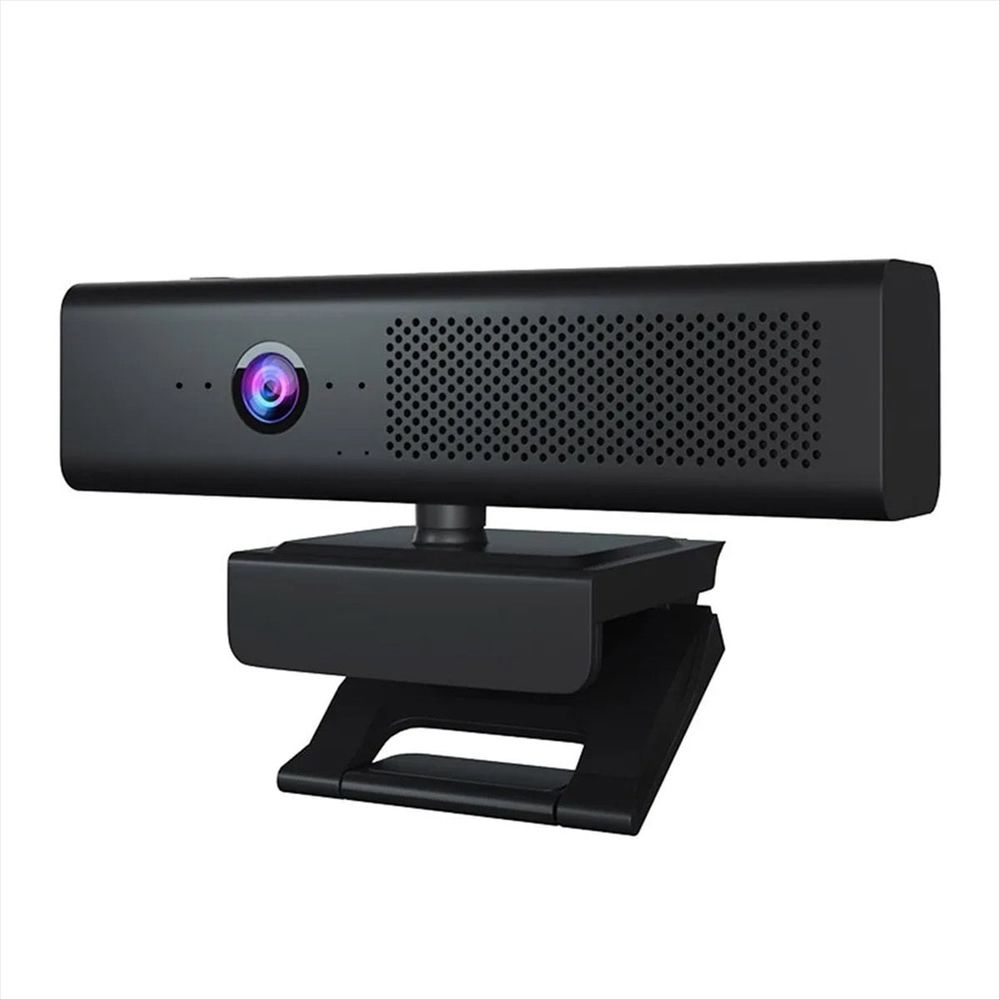
This model bundles a 1080p lens, a noise-reducing microphone, and even a built-in speaker into one neat package. The magnetic privacy cover is a standout feature for security-conscious users.
1080P USB Webcam with HiFi Speaker Microphone – Features a 1080P HD lens, intelligent noise reduction microphone, and a magnetic lens cover.
The secure login specialist
Beyond standard video calls, this compact webcam supports Windows Hello face recognition for password-free login to your PC, adding a layer of convenience to your workday.
Face Recognition Webcam for Win10/11 – A 1080p camera with an 80-degree view that also enables Windows Hello face unlock.
The business-grade performer
A trusted brand name in the conferencing world, this model offers a wide 90-degree field of view, ideal for presentations, and is certified for major platforms.
Logitech C930e Webcam Pro HD 1080P – Features 1080p video at 30fps, a 90-degree field of view, and UVC H.264 encoding.
The bottom line
Investing in a proper webcam for your home office is one of the most effective and affordable ways to boost your professional presence. For most Australian workers, a 1080p model with a decent microphone and a privacy cover will cover all the bases for Zoom and Teams calls. Get the lighting right, and you'll never look back.
Frequently asked questions
Is 1080p good enough for professional video calls?
Absolutely. 1080p full HD is the standard for business conferencing on platforms like Zoom and Microsoft Teams. It provides excellent clarity without requiring excessive bandwidth, which is perfect for Australian home internet connections.
Do I still need a headset if my webcam has a microphone?
It depends on your environment. The built-in microphone on a good webcam is fine for quiet rooms. If you're in a noisy household or need absolute audio clarity, a dedicated headset or USB microphone will still perform better.
Can I use a webcam with both a PC and a laptop?
Yes, easily. Since they connect via USB, you can simply unplug it from one computer and plug it into another. Just ensure your video conferencing software (like Zoom) is installed and running on the device you're using.
What's the benefit of a webcam with a privacy cover?
A physical cover, whether magnetic or a sliding shutter, blocks the lens completely when not in use. This gives you guaranteed privacy and peace of mind, preventing any potential software-based hacking of the camera.
Will a webcam work with my Mac or just Windows?
Most modern USB webcams are plug-and-play and work with both Windows and macOS, as long as the software you're using (e.g., Zoom, Teams, Skype) supports your operating system. Always double-check compatibility details first.
How important is the field of view?
For a standard solo call, a standard view (around 80 degrees) is fine. If you often need to show something on a whiteboard next to you, or fit two people in the frame, a wider field of view (90 degrees or more) is very useful.
Is a 4K webcam worth it for remote work?
Usually not for calls alone. Most video calling apps send 1080p or lower, so a good 1080p webcam looks almost the same on the other end. 4K is worth it if you record video, crop or zoom in, or want the cleaner image a 4K sensor gives when it's downscaled to 1080p.
Shop home office webcams and more
Ready to upgrade your work from home video calls? Explore our full range of tech to complete your setup. Find the perfect webcam and other essentials in our Electronics Computer Accessories collection.